Have you ever clicked on a link expecting to find a goldmine of information, only to be greeted by the dreaded “404 Page Not Found” error? It’s frustrating, right? Now, imagine your potential clients feeling that same pang of annoyance on your own website. If you’re running a business or a portfolio on WordPress, broken links are like invisible cracks in your foundation. They might seem small, but they are slowly draining your authority and scaring away your visitors.
As a digital strategist, I’ve seen how these “dead ends” can tank even the most beautiful websites. Search engines like Google hate broken links because they hinder their bots from crawling your site. More importantly, they signal to Google that your site is neglected. But don’t worry, fixing them isn’t as scary as it sounds. In fact, cleaning up your link profile is one of the fastest ways to give your SEO a much-needed boost. Let’s dive into how you can turn those dead ends into high-traffic highways.
Why Broken Links Are Killing Your SEO Strategy
Before we get into the “how,” we need to understand the “why.” Why does Google care so much about a few stray 404s? It comes down to two main things: User Experience (UX) and Crawl Budget.
Think of Google’s search bots as tireless explorers. They follow links to discover and index your content. When they hit a broken link, it’s a literal dead end. This wastes your “crawl budget”, the limited amount of time Google spends on your site. If the bots keep hitting walls, they might stop exploring altogether, meaning your fresh content won’t show up in search results.
From a human perspective, broken links scream “unprofessional.” Would you trust a consultant whose own website is full of errors? Probably not. High bounce rates (people leaving your site immediately) tell search engines that your page isn’t valuable. By fixing broken links in WordPress, you’re telling both humans and bots that your site is a well-maintained, authoritative resource. Wanna rank top on google, contact Rohan Ahmad for best SEO strategies.
Finding The Culprits Three Easy Ways To Spot Dead Links
You can’t fix what you can’t see. Unless you have a tiny three-page site, checking every link manually is a nightmare. Thankfully, we have tools that can do the heavy lifting for us.
Method 1 Use Google Search Console
Google literally tells you what’s wrong with your site for free. Log into your Google Search Console, go to the “Indexing” tab, and click on “Pages.” Look for the “Not Found (404)” section. This is your hit list. It shows you exactly which URLs Google tried to visit but couldn’t find.
Method 2 WordPress Plugins
If you want to stay inside your dashboard, plugins like Broken Link Checker (by WPMU DEV or AIOSEO) are lifesavers. They scan your posts, pages, and even comments in the background. When they find a dead link, they notify you immediately. Just a heads-up: these can sometimes slow down your site if left running 24/7, so I usually recommend running a scan, fixing the issues, and then deactivating the plugin until your next “check-up.”
Method 3 External SEO Tools
If you’re serious about your technical SEO audit, tools like Ahrefs, Semrush, or even the free version of Screaming Frog can provide a deep-dive report. These are great because they also show you external broken links, links you’ve made to other websites that no longer exist.
Step By Step Guide To Fixing Broken Links In WordPress
Once you have your list of broken links, it’s time to roll up your sleeves. You generally have three options: update the link, remove it, or redirect it.
1. Updating The URL
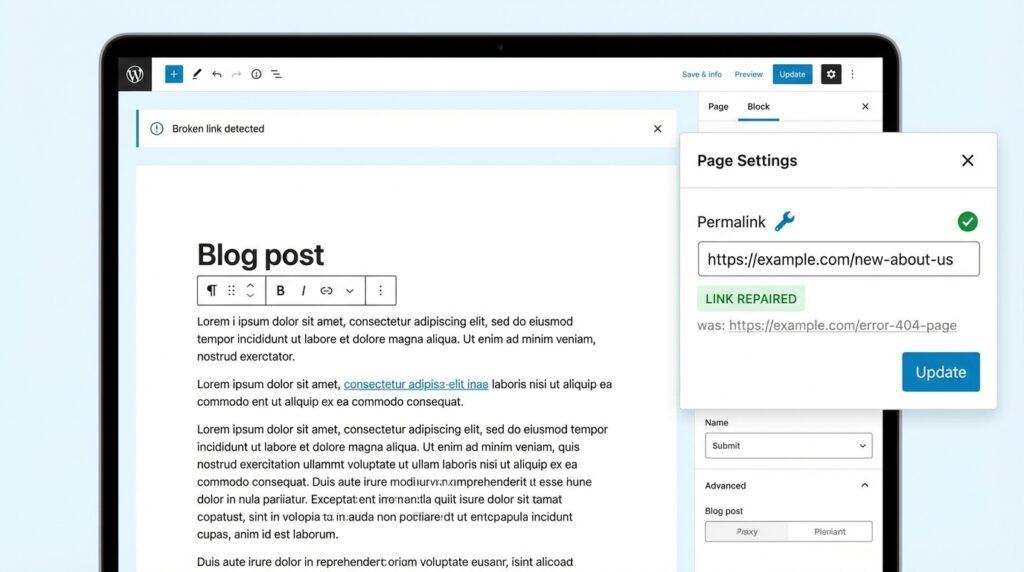
Sometimes, a link is broken simply because of a typo. Maybe you wrote example.com/blog-post instead of example.com/my-blog-post. In your WordPress editor, just highlight the text, click the link icon, and paste the correct URL. Easy peasy.
2. Removing The Link (Unlinking)
If you linked to an external study or a product that no longer exists and you can’t find a better replacement, just remove the link. The text stays, but the “dead” hyperlink is gone. This is much better than leaving a 404.
3. Setting Up 301 Redirects
This is the “gold standard” for SEO. If you deleted a page or changed its URL, you don’t want to just let the old link die, especially if it had other websites linking to it. A 301 redirect tells the browser (and Google), “Hey, this page moved permanently to this new location.”
I recommend using a plugin like Redirection or the built-in redirection managers in Rank Math or Yoast SEO. This ensures that any “link juice” (ranking power) the old page had is passed on to the new one.
Don’t Forget About Broken Images
Did you know that “broken” images can hurt your SEO just as much as broken text links? If you’ve deleted an image from your Media Library but it’s still embedded in a post, it shows up as a broken icon. Google sees this as a technical error. Most link-checking plugins will also flag missing images. Make sure to replace them or remove the image tag to keep your “site health score” high.
Related Information: The End Of The Ten Blue Links And What It Means For Your SEO Strategy
Internal vs External Broken Links What Should You Prioritize
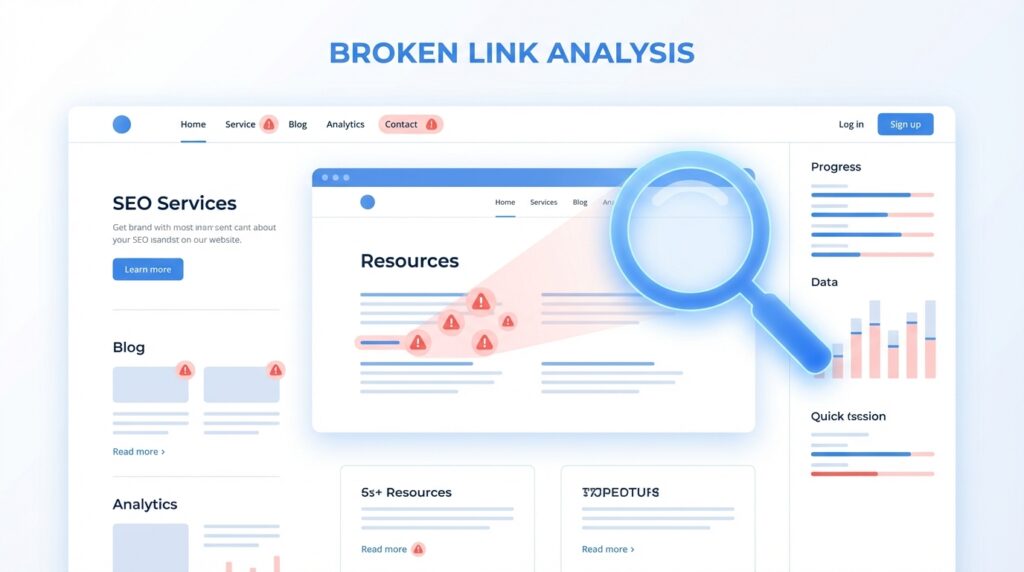
If you have hundreds of errors, don’t panic. Start with your internal links (links from one of your pages to another). These are the most important for keeping users on your site and helping Google understand your site structure.
Next, focus on backlinks (other sites linking to you). If a high-authority site is linking to a page on your site that you’ve deleted, you are wasting a massive SEO opportunity! Reach out to them and ask for an update, or simply set up a 301 redirect from that broken URL to your homepage or a related article.
The Secret To Staying Link Healthy
Fixing broken links shouldn’t be a once-a-year event. It should be part of your monthly routine. Think of it like changing the oil in your car, it keeps everything running smoothly and prevents major breakdowns later.
Use a “relative path” when linking to your own content (e.g., use /my-post instead of https://rohanahmad.com/my-post). This makes your links much more resilient if you ever decide to change your domain or move from HTTP to HTTPS.
Final Words
In the fast-paced world of digital marketing, your website is your most valuable asset. Don’t let something as simple as a broken link stand between you and your customers. By fixing broken links in WordPress, you’re not just cleaning up code; you’re improving the user experience, building trust, and showing search engines that you mean business.
It might take an hour or two this weekend, but the boost in your search rankings and user satisfaction is well worth the effort. Ready to get your site back on track? Go check your Google Search Console right now, your future rankings will thank you!